<?xml version="1.0" encoding="utf-8"?><feed xmlns="http://www.w3.org/2005/Atom" ><generator uri="https://jekyllrb.com/" version="4.4.1">Jekyll</generator><link href="https://pavo.aplura.com/feed.xml" rel="self" type="application/atom+xml" /><link href="https://pavo.aplura.com/" rel="alternate" type="text/html" /><updated>2025-08-29T11:25:48-04:00</updated><id>https://pavo.aplura.com/feed.xml</id><title type="html">PAVO by Aplura</title><subtitle>PAVO Splunk security apps built by experts to provide quick time-to-value and visibility to Splunk events.</subtitle><author><name>Aplura, LLC</name></author><entry><title type="html">Leverage PAVO in your security searches for the Sunburst cyberattack</title><link href="https://pavo.aplura.com/content/network%20traffic/dns/2021/03/29/leverage-pavo-in-your-security-searches-for-the-sunburst-cyberattack.html" rel="alternate" type="text/html" title="Leverage PAVO in your security searches for the Sunburst cyberattack" /><published>2021-03-29T00:00:00-04:00</published><updated>2021-03-29T00:00:00-04:00</updated><id>https://pavo.aplura.com/content/network%20traffic/dns/2021/03/29/leverage-pavo-in-your-security-searches-for-the-sunburst-cyberattack</id><content type="html" xml:base="https://pavo.aplura.com/content/network%20traffic/dns/2021/03/29/leverage-pavo-in-your-security-searches-for-the-sunburst-cyberattack.html"><![CDATA[<p>Everyone was taken aback by the scope of the SolarWinds cyberattack, Sunburst. As more details of the attack were released by various organizations around the world, our clients found an advantage in already having a Splunk Dashboard created that could search for key indicators of compromise. Here is what they used.</p>

<p>Sunburst, in short, is malware that spreads via a compromised vender supply chain (software update of a popular tool), that then uses a command and control network to download malicious payloads or instructions.</p>

<p>One of the best ways to search for indicators of compromise is to search for the DNS calls or Network Traffic to the malicious command and control network. Enter, the <a href="https://splunkbase.splunk.com/app/4229/">PAVO Network Traffic App for Splunk</a> and <a href="https://splunkbase.splunk.com/app/5178/">PAVO DNS App for Splunk</a>.</p>

<p>Our clients used the <em>IP Profile and Network Traffic Search</em> Dashboards in our <a href="https://splunkbase.splunk.com/app/4229/">Network Traffic App</a> to look for IP addresses associated with the Sunburst attack. The bad actors associated with these types of attacks often change IP addresses, thus making it hard to maintain a watchlist. Most clients quickly pivoted to search for related domain names. In this case the domain avsvmcloud[.]com has been identified by industry security experts.</p>

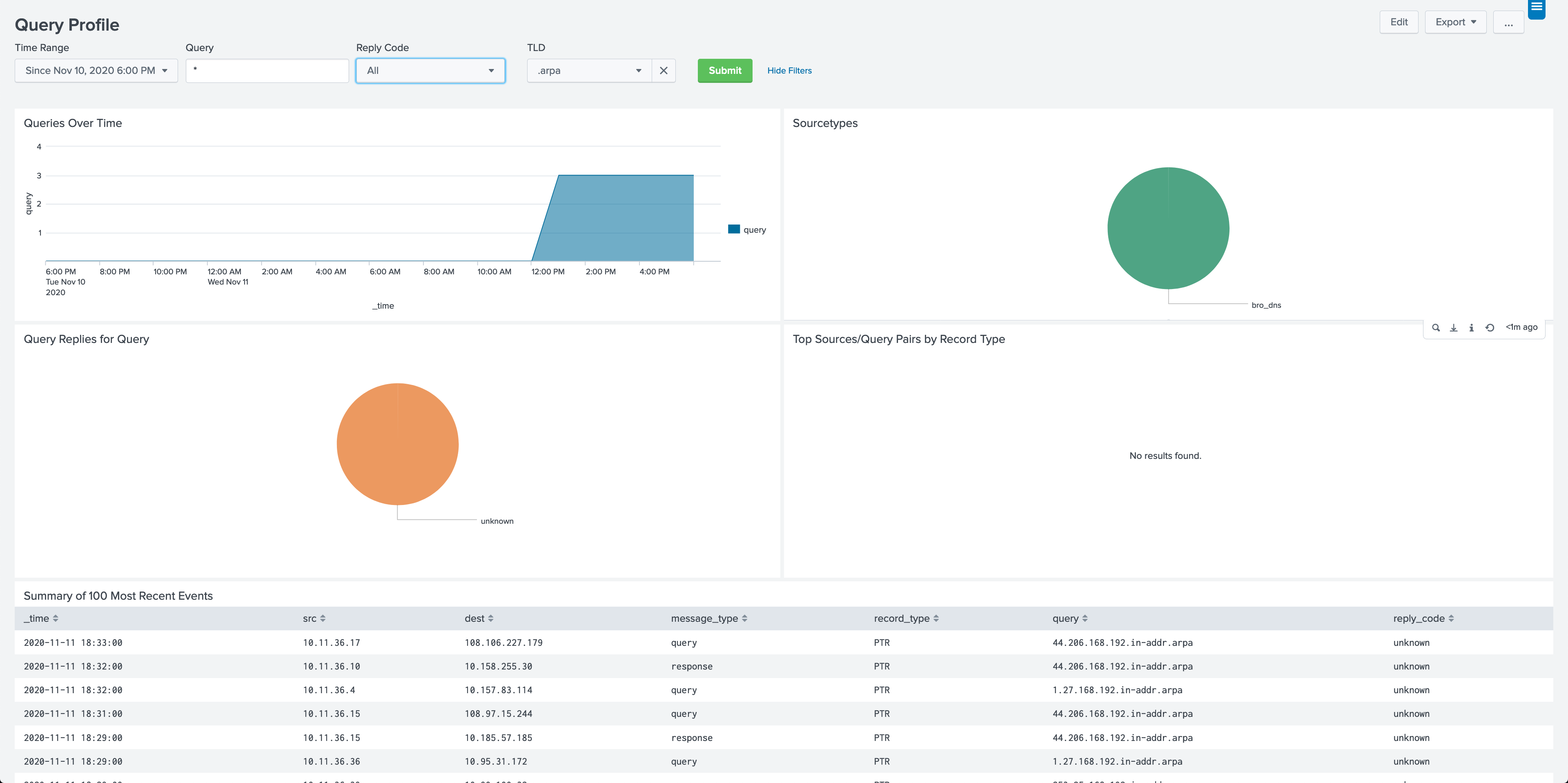
<p>Additionally, our clients used the <em>Query Profile</em> Dashboard in our <a href="https://splunkbase.splunk.com/app/5178/">DNS App</a> to quickly search for the aforementioned domain. If any communications are found, the <em>Query Profile</em> Dashboard provides valuable information such as time, source, destination and type of query to jump start the investigation.</p>

<p><a href="/assets/images/dns_queryprofile.png">
    <img src="/assets/images/dns_queryprofile.png" alt="DNS" />
</a></p>

<p>You may have already vetted your network against Sunburst, but PAVO can provide other valuable advantages for you. This is a real-world example for keeping and using PAVO in your Splunk deployment. Access PAVO <a href="https://pavo.aplura.com/">here</a> for any further needs.</p>

<p><a href="/assets/pdf/LeveragePAVOinyoursecuritysearchesfortheSunburstcyberattack.pdf">PDF</a></p>]]></content><author><name>Aplura, LLC</name></author><category term="Network Traffic" /><category term="DNS" /><summary type="html"><![CDATA[Everyone was taken aback by the scope of the SolarWinds cyberattack, Sunburst. As more details of the attack were released by various organizations around the world, our clients found an advantage in already having a Splunk Dashboard created that could search for key indicators of compromise. Here is what they used.]]></summary></entry><entry><title type="html">DNS Search Techniques</title><link href="https://pavo.aplura.com/content/dns/2020/11/11/dns-search-techniques.html" rel="alternate" type="text/html" title="DNS Search Techniques" /><published>2020-11-11T00:00:00-05:00</published><updated>2020-11-11T00:00:00-05:00</updated><id>https://pavo.aplura.com/content/dns/2020/11/11/dns-search-techniques</id><content type="html" xml:base="https://pavo.aplura.com/content/dns/2020/11/11/dns-search-techniques.html"><![CDATA[<p style="color:green">More search techniques for everyday Splunkers</p>

<p>The Pavo team at Aplura wanted to highlight a commonly requested search technique that can help polish and tune a Splunk Use Case. In this post, we will talk about DNS resolution in the searches themselves!</p>

<p>DNS is becoming increasingly important in correlating events and incidents; however in many cases logs do not have both an IP and DNS name. We can use the feature “lookup dnslookup “ in order to resolve an IP address or vice versa.</p>

<p style="color:green">Here are some starter examples you might have run into:</p>

<ul>
  <li>Your boss needs a report of system names accessing the VPN, but the VPN only logs the IP address. Use this lookup to find the host names in that report.</li>
  <li>You need to correlate the IPs of systems in IDS logs to the names of systems in the authentication logs. Use this lookup to find the host names, then search those names in the authentication logs.</li>
  <li>Your vulnerability data has the names of systems, but you need to have both the names and IP addresses for your report. Use the reverse lookup to output the IP addresses for those names.</li>
</ul>

<p>Of course, all commands have a few things to keep in mind. This lookup tries to resolve each value it is passed when the search runs. This could add more information, but it also slows down the search. Also, if the name or IP does not resolve, you won’t have a value.</p>

<p>Now that we know how useful it is, let’s take a look at the syntax. Splunk ships configurations out of the box with this <a href="https://docs.splunk.com/Documentation/Splunk/latest/Knowledge/Configureexternallookups#External_lookup_example">external lookup</a> ready. You do not have to add configurations to it.</p>

<p>The following search performs a DNS lookup on the field named “IP_data_field” and outputs the results in “host_data_field.”</p>

<div class="language-plaintext highlighter-rouge"><div class="highlight"><pre class="highlight"><code>index=gogo sourcetype=gaga | lookup dnslookup clientip as IP_data_field OUTPUT clienthost as host_data_field
</code></pre></div></div>
<p>The next search performs a reverse DNS lookup on the field named “host_data_field” and outputs the results in “IP_data_field.”</p>

<div class="language-plaintext highlighter-rouge"><div class="highlight"><pre class="highlight"><code>index=happy sourcetype=joyjoy | lookup dnslookup clienthost as host_data_field OUTPUT clientip as IP_data_field
</code></pre></div></div>

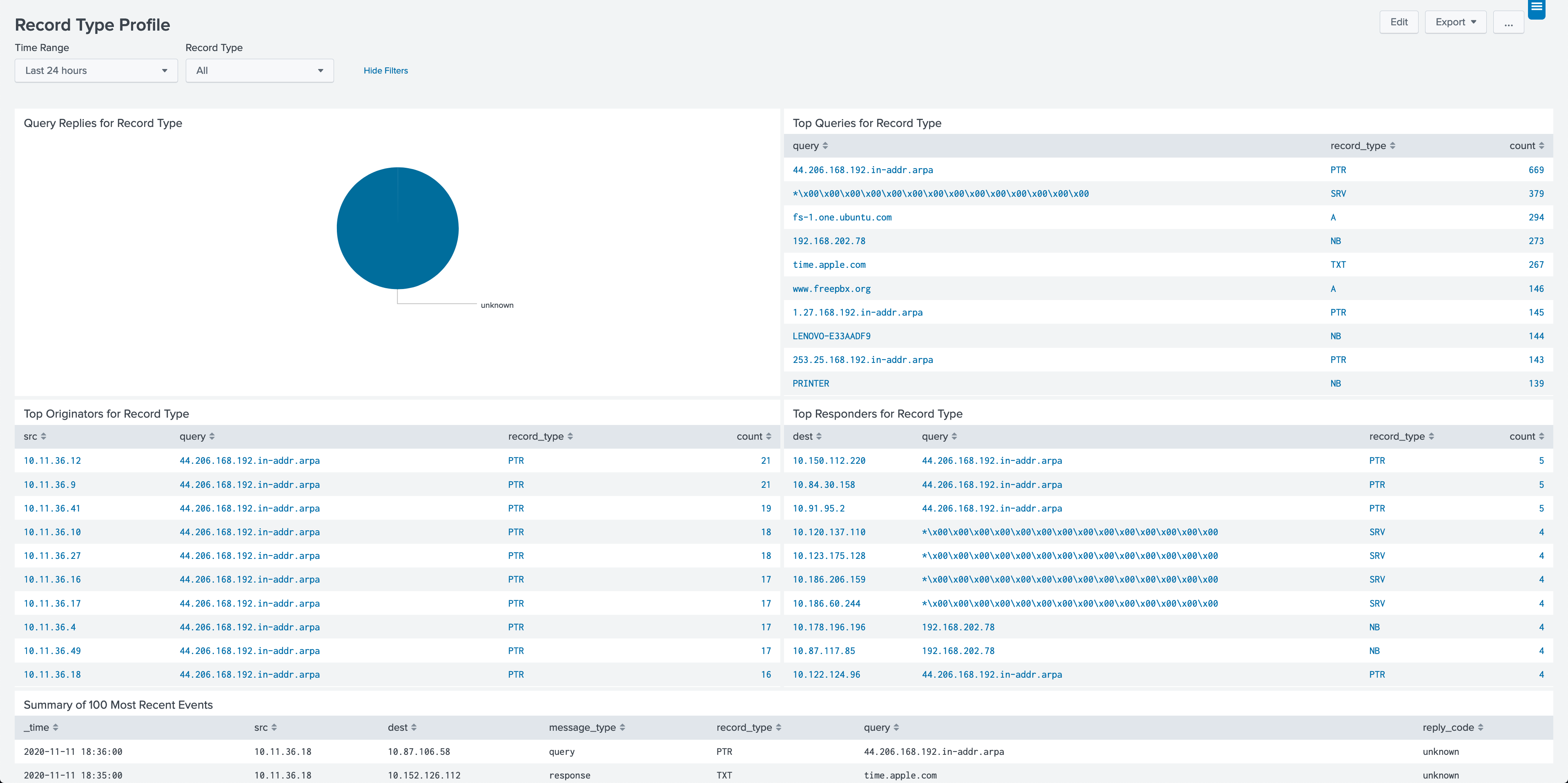
<p>Maybe you don’t need to resolve fields in your current use case but instead need to explore, analyze, and report on the DNS logs directly. Our PAVO DNS App for Splunk can help do just that. <a href="https://splunkbase.splunk.com/app/5178/">Download today</a>.</p>

<p>The app uses <a href="https://docs.splunk.com/Documentation/CIM/latest/User/Overview">Splunk CIM</a> normalized data and can help you quickly find a breakdown of queries to non-existent domains; maybe you need to highlight anomalies of DNS record types; or you need to add transparency to where all the DNS data is coming from, and much more.</p>

<p><a href="/assets/images/dnsrecordtype.png">
    <img src="/assets/images/dnsrecordtype.png" alt="DNS" />
</a></p>

<p><a href="/assets/pdf/DNSSearchTechniques.pdf">PDF</a></p>]]></content><author><name>Aplura, LLC</name></author><category term="DNS" /><summary type="html"><![CDATA[More search techniques for everyday Splunkers]]></summary></entry><entry><title type="html">Anatomy of a Tailored PAVO Splunk Use Case for Citrix VPNs</title><link href="https://pavo.aplura.com/content/vpn/2020/09/01/anatomy-of-a-tailored-pavo-splunk-use-case-for-citrix-vpns.html" rel="alternate" type="text/html" title="Anatomy of a Tailored PAVO Splunk Use Case for Citrix VPNs" /><published>2020-09-01T00:00:00-04:00</published><updated>2020-09-01T00:00:00-04:00</updated><id>https://pavo.aplura.com/content/vpn/2020/09/01/anatomy-of-a-tailored-pavo-splunk-use-case-for-citrix-vpns</id><content type="html" xml:base="https://pavo.aplura.com/content/vpn/2020/09/01/anatomy-of-a-tailored-pavo-splunk-use-case-for-citrix-vpns.html"><![CDATA[<p>Increasingly, we are asked by clients to help spot various activities via network logs. Here is a relatively small but important use case that we tailored for a Citrix VPN.</p>

<p>Let’s break it down and maybe this use case can help you in your environment.</p>

<p style="color:green">The Use Case:</p>
<p>With the current environment around the world, this client knows everyone is working remotely at home. “Bad actors” are attempting now more than ever to access company systems. In order to quickly screen out possible incidents from their Citrix VPN NetScaler, the client would like a chart to show any VPN access (both successful and unsuccessful) and also who is accessing VPN from countries where there are no offices. No personnel is located overseas and travel is currently restricted.</p>

<p style="color:green">The Search:</p>
<p style="color:green">Search Title:</p>
<p>Citrix VPN Connections Outside Your Business Operations</p>

<div class="language-plaintext highlighter-rouge"><div class="highlight"><pre class="highlight"><code>index=netscaler (event_name='SSLVPN LOGIN' OR event_name='AAA LOGIN_FAILED') NOT src_user='scriptChecker' 
| iplocation src_ip 
| search Country=* NOT (Country='United States' OR Country='Canada') 
| table _time event_name src_user src_ip client_ip nat_ip City Country Region
</code></pre></div></div>

<p style="color:green">Dissecting the Search:</p>
<p>Let’s break this down in quick detail.</p>

<div class="language-plaintext highlighter-rouge"><div class="highlight"><pre class="highlight"><code>index=netscaler (event_name='SSLVPN LOGIN' OR event_name='AAA LOGIN_FAILED') NOT src_user='scriptRunner'
</code></pre></div></div>

<p>We start by searching the VPN NetScaler logs and narrowing down to the specific events that show users logging in or failing to login. In this case, we know we have 1 automated account that runs various scripts for the BizDev Team called “scriptRunner.” The SOC has created its own explicit controls for this account and has chosen to ignore it from this report. </p>

<div class="language-plaintext highlighter-rouge"><div class="highlight"><pre class="highlight"><code>| iplocation src_ip 
</code></pre></div></div>

<p>Next, we need to lookup (find) the location of each source IP. To do this, we are using the Splunk iplocation command. This command takes the specified IP, checks that IP in the GeoLite2-City.mmdb database, and outputs the fields. (the fields are: city, country, latitude, longitude, and region)
<a href="https://docs.splunk.com/Documentation/Splunk/latest/SearchReference/Iplocation">IP Location Reference</a></p>

<div class="language-plaintext highlighter-rouge"><div class="highlight"><pre class="highlight"><code>| search Country=* NOT (Country='United States' OR Country='Canada') 
</code></pre></div></div>

<p>At this point in the search we have our logins and attempts, plus where they are coming from. We now need to filter down the results, removing any acceptable results from countries where offices are located. We start a sub-search with the search command, ensuring the country is specified. Then, we filter out the countries where the client has offices.</p>

<div class="language-plaintext highlighter-rouge"><div class="highlight"><pre class="highlight"><code>| table _time event_name src_user src_ip client_ip nat_ip City Country Region
</code></pre></div></div>

<p>So now, we have all the fields for location and events that meet the use case’s criteria. We are creating the table for the final presentation of results. List the fields in the order that is desired.
<a href="https://docs.splunk.com/Documentation/Splunk/latest/SearchReference/Table">Table Reference</a></p>

<p>We concluded this report by scheduling it to search over a small window of 15 minutes.</p>

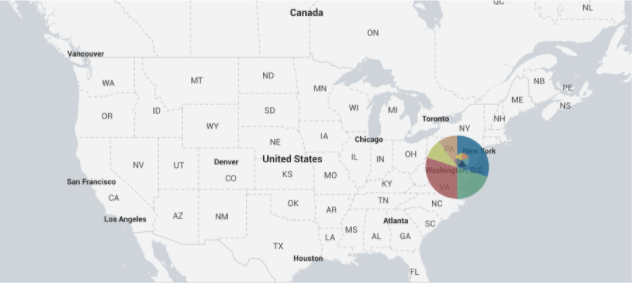
<p>You may not have Citrix, but the idea of this use case can be applied to any VPN with little effort. A more generalized visualization of this search can be found in the Geo Location Dashboard within the PAVO Network Traffic App. This page will visualize all the network traffic Data Model on your network.</p>

<p><a href="/assets/images/vpngeolocation.png">
    <img src="/assets/images/vpngeolocation.png" alt="VPN" />
</a></p>

<p><a href="/assets/pdf/AnatomyofaTailoredPAVOSplunkUseCaseforCitrixVPNs.pdf">PDF</a></p>]]></content><author><name>Aplura, LLC</name></author><category term="VPN" /><summary type="html"><![CDATA[Increasingly, we are asked by clients to help spot various activities via network logs. Here is a relatively small but important use case that we tailored for a Citrix VPN.]]></summary></entry></feed>